What Is That Box? A Beginner’s Guide to Home Internet Equipment in Japan
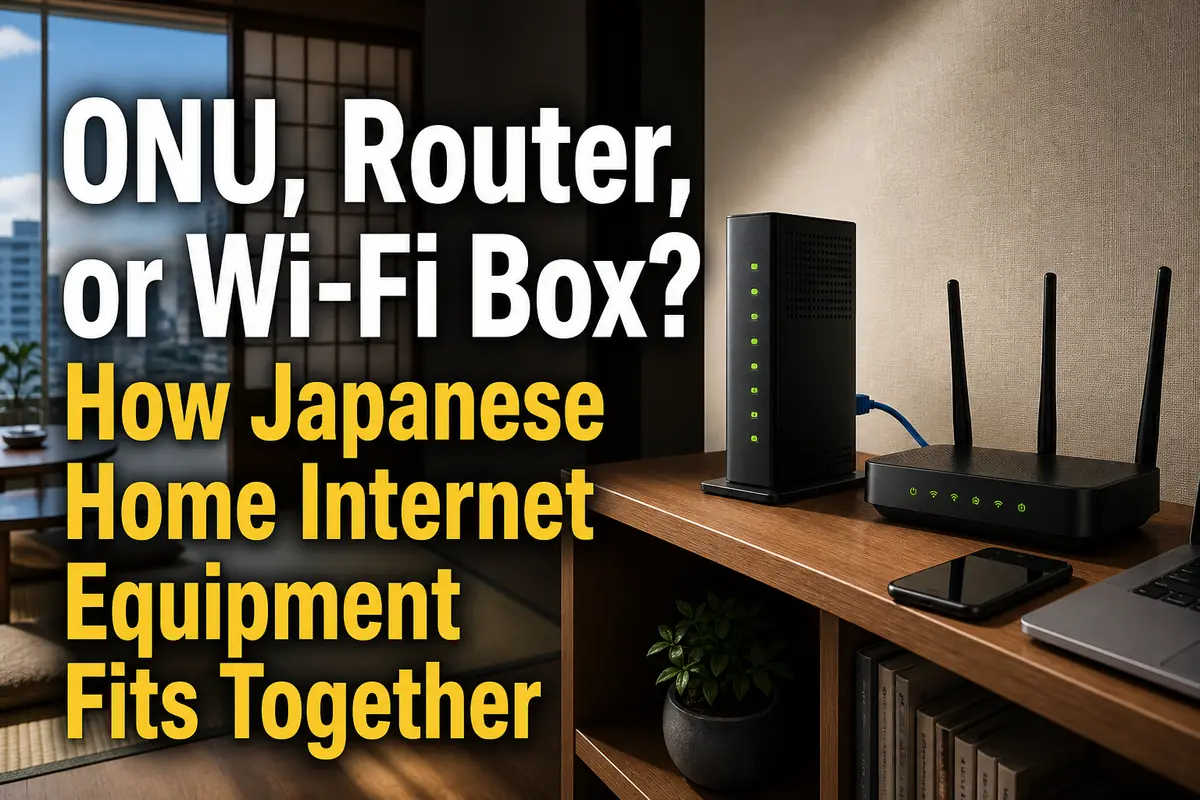
In most Japanese fiber-optic homes, the basic connection is fiber line → ONU → router or home gateway → your devices. Wi-Fi is only the wireless link inside your home; it is not the internet service itself. IPv6 is another separate piece: it describes how your connection reaches the internet and may require a compatible plan and router.
This guide is for new residents, students, workers, and anyone trying to install, replace, or troubleshoot home internet in Japan.
Quick answer:
- The ONU connects your home to the fiber network.
- The router shares that connection among your devices.
- Wi-Fi connects phones and computers to the router without a cable.
- A home gateway may combine routing, Wi-Fi, and telephone functions.
- IPv6 IPoE can improve performance in some environments, but compatibility depends on the provider, service, and equipment.
First, identify the job of each box
The most important step is to separate the fiber equipment from the equipment that creates your home network.
ONU: the fiber-line endpoint
ONU stands for Optical Network Unit. In Japanese, it may be labeled kaisen shūtan sōchi (回線終端装置, line termination device) or simply ONU.
The ONU converts the signal traveling through the optical fiber into a signal that network equipment can use. It normally has:
- A thin optical-fiber cable or optical wall connection
- A power cable
- An Ethernet port marked UNI, LAN, or a similar name
- Status lights such as POWER, OPT, PON, AUTH, or UNI
An ONU usually does not create a complete home Wi-Fi network by itself. There are exceptions: some providers supply an integrated unit containing ONU, router, telephone, and Wi-Fi functions.
Do not unplug, bend sharply, or attempt to clean an optical connector unless your operator specifically instructs you to do so. Fiber cables and connectors are more delicate than ordinary Ethernet cables.
Router: the manager of your home network
The router sits between the provider’s connection and your phones, computers, televisions, and other devices. It assigns local network addresses, directs traffic, and usually provides basic firewall functions.
A typical separate router has:
- One WAN or INTERNET port, connected to the ONU or home gateway
- Several LAN ports for wired devices
- Wi-Fi network names and passwords printed on a label
- A browser-based or app-based settings page
The router must support the connection method used by your provider. A device that works perfectly with one contract may need different settings—or may not work at all—with another.
Wi-Fi: the wireless part, not the line itself
Wi-Fi is the radio connection between a device and a wireless router or access point. A phone can show full Wi-Fi bars even when the ONU or provider connection is offline.
That distinction helps when diagnosing problems:
- No Wi-Fi network appears: check the router or wireless access point.
- Wi-Fi connects but websites do not open: check the ONU, router’s internet status, provider activation, and connection settings.
- Wired internet works but Wi-Fi is weak: the fiber line is probably not the main problem; router placement, radio band, or building materials may be responsible.
Home gateway: several functions in one unit
A hōmu gētowei (ホームゲートウェイ, home gateway) can combine multiple jobs:
- Router
- Wi-Fi access point
- IP telephone connection
- Provider-specific authentication or management
- In some models, the ONU itself
NTT equipment may also be described as a hikari denwa rūta (ひかり電話ルーター, Hikari Denwa router). Other operators use their own product names and configurations.
A home gateway does not always include active Wi-Fi service. For example, an operator may require a separate wireless option, compatible card, or rental arrangement. Check the contract rather than assuming that antennas or a Wi-Fi light mean the feature is available.
The connection patterns you are most likely to see
The number of boxes is less important than the function each box performs.
Pattern 1: separate ONU and Wi-Fi router
This is the easiest layout to understand:
- The optical line enters the ONU.
- An Ethernet cable connects the ONU to the router’s WAN port.
- Phones and computers connect to the router by Wi-Fi or LAN cable.
If you buy your own router, confirm the required IPv6/IPoE method and port speed before purchasing it.
Pattern 2: ONU plus provider home gateway
Here, the ONU connects to a rented home gateway. The gateway may handle routing, telephone service, and Wi-Fi.
Adding another Wi-Fi router without changing its operating mode can create double routing, often called double NAT. Basic browsing may still work, but online games, remote access, port forwarding, and some work VPNs can become harder to configure.
If the provider gateway already acts as the router, set the extra device to access point mode, bridge mode, or AP mode when appropriate. The exact term varies by manufacturer.
Pattern 3: one integrated unit
Some equipment combines the ONU, router, and wireless access point. KDDI’s official information, for example, lists home gateways with integrated ONU and Wi-Fi functions for particular au Hikari services.
With an integrated unit, you may need only one box. However, replacing it with a shop-bought router is not necessarily possible because the fiber termination and provider-managed functions remain tied to the supplied equipment.
Pattern 4: building internet or a LAN wall socket
Some apartments provide an Ethernet socket in the room rather than an individual ONU. Others use VDSL, cable internet, or a building-wide managed network.
Before buying equipment, ask the landlord, management company, or operator:
- Is the room connection optical fiber, Ethernet, VDSL, or coaxial cable?
- Is internet included in the rent?
- Must residents register a device or account?
- Is a router already installed elsewhere in the unit?
- May residents replace or add a wireless router?
These building-specific conditions can matter more than the brand printed on the router.
IPv6 and IPoE: what they actually change
IPv6 is an internet addressing protocol; IPoE is a connection method. Neither is a Wi-Fi standard. Changing from 2.4 GHz to 5 GHz Wi-Fi does not activate IPv6, and activating IPv6 does not automatically improve a weak wireless signal.
Why Japanese providers mention IPv6 IPoE
Traditional Japanese fiber services often use PPPoE, which may require a connection ID and password. Many providers now offer IPoE-based services, sometimes carrying both IPv6 and IPv4 traffic through technologies such as DS-Lite or MAP-E.
NTT East states that its Hikari Denwa home gateways support IPv6 communication, but whether IPoE can be used depends on the ISP. It advises customers to confirm:
- Whether the ISP provides IPv6 IPoE
- Which connection method it uses, such as DS-Lite or MAP-E
- What router conditions apply
This is why a router box saying “IPv6 compatible” is not enough. The router must support your provider’s particular service and connection method.
ここがポイント: “IPv6 supported” on a router does not guarantee automatic compatibility. Check the provider’s named service, the IPv4-over-IPv6 method, and the approved router requirements together.
Will IPv6 make the connection faster?
It may improve performance when an older PPPoE connection is congested, but it is not a guaranteed speed upgrade. Actual performance also depends on:
- Your subscribed line speed
- Provider and network conditions
- Router and home-gateway capabilities
- Ethernet port and cable speeds
- Wi-Fi standard, radio band, distance, and interference
- The capabilities of the phone or computer
- The destination service on the internet
SoftBank describes its IPv6 IPoE + IPv4 service as using both protocols without manual switching and notes that it may be faster depending on the environment. Its official support information also says that applicable SoftBank Hikari plans require the provider’s Hikari BB Unit for this connection method. Other providers impose different conditions.
IPv6 does not mean “IPv6-only websites”
Most residents still need access to IPv4 services. Japanese consumer plans therefore commonly use a method that carries IPv4 traffic alongside or over an IPv6-based connection.
Ask the ISP whether the service includes both IPv6 and access to ordinary IPv4 destinations. Do not disable IPv4 on your computer simply because the contract advertises IPv6.
How to set up the equipment in the right order
A careful setup avoids most cable and activation mistakes.
1. Read the provider’s paperwork before connecting anything
Look for these Japanese terms:
- Kaitsū-bi (開通日): activation date
- Setsuzoku ID (接続ID): connection ID
- Setsuzoku pasuwādo (接続パスワード): connection password
- IPv6 riyō kaishi (IPv6利用開始): start of IPv6 service
- Kiki rentaru (機器レンタル): equipment rental
- Henkyaku (返却): return
The line may not work before the activation date even when every cable is correct. Some providers activate IPv6 separately or send a notice after provisioning is complete.
2. Match each cable to the correct port
The usual order is:
- Optical connection to ONU
- ONU Ethernet port to router WAN/INTERNET port
- Router LAN port to a computer, television, or network switch
- Wireless devices to the router’s Wi-Fi name, or SSID
Do not connect the ONU to one of the router’s ordinary LAN ports unless the provider or manufacturer’s guide explicitly tells you to do so.
3. Turn on the equipment in sequence
Follow the operator’s manual where it gives a specific sequence. A common troubleshooting sequence is:
- Turn off the router or home gateway.
- Turn off the ONU.
- Wait as instructed by the operator.
- Turn on the ONU and wait for its normal line lights.
- Turn on the router or home gateway.
- Wait several minutes before testing.
For au Hikari troubleshooting, KDDI advises checking power and cables, then turning off the ONU and home gateway and restarting them after two to three minutes. This is an operator-specific instruction, not a universal timing rule.
4. Choose automatic setup or enter the supplied credentials
With some IPoE services and provider gateways, the connection configures itself. A PPPoE service may require the connection ID and password from the ISP.
Do not confuse these with:
- Your Wi-Fi password
- Your provider account login
- Your email password
- The administrator password for the router settings page
They may all be different.
5. Confirm wired internet before tuning Wi-Fi
If possible, connect a computer to the router with Ethernet. This separates line problems from wireless problems.
Then check:
- Does the computer obtain an address automatically?
- Can it open both ordinary IPv4 and IPv6-capable websites?
- Does the provider’s account page show that activation is complete?
- Does the router report IPoE, PPPoE, or another expected connection status?
Only after the wired connection works should you spend time changing Wi-Fi channels or relocating the router.
Buying your own router: the compatibility checklist
Do not choose a router by Wi-Fi speed alone.
Before purchasing, record the exact plan name and ask the ISP these questions:
- Can I use a customer-owned router?
- Does the plan require a provider rental gateway or proprietary unit?
- Which IPv6/IPoE and IPv4-over-IPv6 method must the router support?
- Is a list of tested or approved models available?
- Do I need PPPoE credentials as a fallback?
- If I use a provider gateway, should my router operate in router or access-point mode?
- Will replacing equipment affect the IP telephone service?
Check the physical speed as well
A fast line can be limited by one slower component. For a 1 Gbps plan, a device with only 100 Mbps Ethernet ports creates an obvious bottleneck. For a 10 Gbps plan, the router, computer adapter, LAN cable, and intermediate switches must support suitable multi-gigabit speeds to use more than 1 Gbps.
KDDI notes on its 10 Gbps service page that actual performance can be limited by the customer’s LAN ports, router, hub, cables, and other home equipment. Its listed recommendation for that service includes 10GBASE-T ports and Category 6A or better cable.
This does not mean every household needs premium hardware. A student using a phone and laptop in a small apartment may benefit more from good router placement than from a 10 Gbps subscription.
Wi-Fi choices inside a Japanese home
The right band depends on distance and the building, not on nationality or region.
2.4 GHz
This band usually travels farther and works with many older devices, but it is more exposed to interference from neighboring networks and household equipment.
Use it for:
- Older smart-home devices
- Rooms farther from the router
- Devices that do not support newer bands
5 GHz
This band can provide better performance at short to moderate distances, but walls and floors weaken it more easily.
Use it for:
- Video calls
- Streaming
- Large downloads
- Devices in the same room or nearby rooms
6 GHz
Compatible Wi-Fi 6E and Wi-Fi 7 equipment can use this band. Both the router and the client device must support it. Its shorter practical range may require careful placement or additional access points.
A newer Wi-Fi label does not change the speed of the subscribed internet line. It mainly changes the wireless link inside the home.
Common mistakes and how to avoid them
Most setup failures come from mixing up equipment roles, service status, or passwords.
- Connecting to Wi-Fi and assuming the internet is working: Test a website and check the router’s internet light or status page.
- Buying an “IPv6 router” without checking the provider method: Confirm DS-Lite, MAP-E, or other named requirements with the ISP.
- Entering the Wi-Fi password as the PPPoE password: Use the connection credentials in the provider’s activation documents.
- Placing two routers in router mode: Use access-point or bridge mode for the second unit unless you intentionally need two routed networks.
- Resetting rented equipment too early: A factory reset may erase provider settings. Contact support before resetting a managed home gateway.
- Returning only one box after cancellation: The ONU, gateway, power adapters, Wi-Fi cards, and cables may be separate rental items. Follow the return list.
- Throwing away the shipping box and labels immediately: Keep them until the service works and you know the return procedure.
- Expecting advertised maximum speed everywhere: Maximum figures are technical limits, not guaranteed household speeds.
When you move, cancel, or change providers
Rental equipment normally remains the property of the operator. Do not leave it in the apartment or dispose of it as electronic waste unless the operator expressly says it belongs to you.
Before moving, confirm:
- Whether the service can be transferred to the new address
- Whether construction is required
- Whether the existing ONU stays with the property
- Which devices and accessories must be returned
- The return deadline and shipping method
- Whether an installation worker must remove the optical line
- Whether the new address uses the same connection technology
Even within the same city, one building may support direct fiber while another uses VDSL or building-wide Ethernet. Availability checks must therefore use the exact address and, for apartments, the building and unit information requested by the operator.
Troubleshooting: identify which layer has failed
Work from the fiber line toward your device instead of changing several settings at once.
The ONU has an abnormal optical or authentication light
Check power and cable seating without disturbing the optical connector. If the line-status light remains abnormal, contact the network operator or the support desk named in your contract. A new Wi-Fi router will not repair an optical-line fault.
The ONU looks normal, but the router has no internet connection
Check:
- WAN cable and port
- Service activation status
- PPPoE ID and password, if required
- IPv6/IPoE provisioning status
- Router compatibility
- Whether a required provider unit is connected
The company billing you and the company operating the access line may be different. Your documents should identify the first support contact.
Internet works by cable but not by Wi-Fi
Restart only the wireless router after recording any important settings. Then check its Wi-Fi switch, SSID, password, band, placement, and access-point status.
Keep the router:
- In an open, raised position
- Away from metal cabinets
- Away from microwave ovens and other strong interference sources
- As close as practical to the center of the area you use
Some services work, but games, VPNs, or remote access do not
Possible causes include double NAT, IPv4-over-IPv6 restrictions, port-sharing behavior, firewall settings, or workplace VPN requirements. Do not change security settings at random.
Tell support the exact service that fails and ask:
- Which connection method is active?
- Is a shared IPv4 address used?
- Is inbound port forwarding available?
- Does the provider offer another connection option?
Current points to check in 2026
As checked on August 22, 2026, the practical rule remains that IPv6/IPoE support is contract- and equipment-specific. Official operator pages continue to direct users to check the ISP’s connection method and hardware requirements.
Three developments make that check increasingly important:
- Integrated 10 Gbps gateways can combine ONU, routing, telephone, and modern Wi-Fi functions.
- Provider-specific IPv4-over-IPv6 services may require approved or rented equipment.
- Wi-Fi 6E and Wi-Fi 7 can improve the home wireless link, but only with compatible devices and suitable placement.
The next time an operator offers “faster IPv6” or a new router, ask for the exact plan name, connection method, required equipment, rental charge, and return conditions. Those five details tell you much more than the word “IPv6” on its own.
Practical takeaway
For a new installation, use this order:
- Identify the ONU and any provider-owned gateway.
- Confirm whether the gateway already performs routing and Wi-Fi.
- Ask the ISP for the exact IPv6/IPoE method and compatible-router conditions.
- Establish a wired connection before adjusting Wi-Fi.
- Keep rental equipment and return instructions together.
If the connection fails, report the equipment name, model number, light status, active connection method, and the step at which it stopped working. That information helps support staff distinguish a fiber fault from a router, activation, or Wi-Fi problem without making you repeat the whole setup.
参照リンク
- NTT East: IPv6 IPoE support for Hikari Denwa home gateways
- SoftBank: What IPv6 IPoE + IPv4 means for SoftBank Hikari
- SoftBank: Checking IPv6-compatible internet equipment
- KDDI au: Checking au Hikari equipment status
- KDDI au: Home Gateway Aterm BL3000HM
- KDDI au: Troubleshooting a slow home connection
- KDDI au: au Hikari 10 Gbps and 5 Gbps services
- KDDI au: au Hikari support