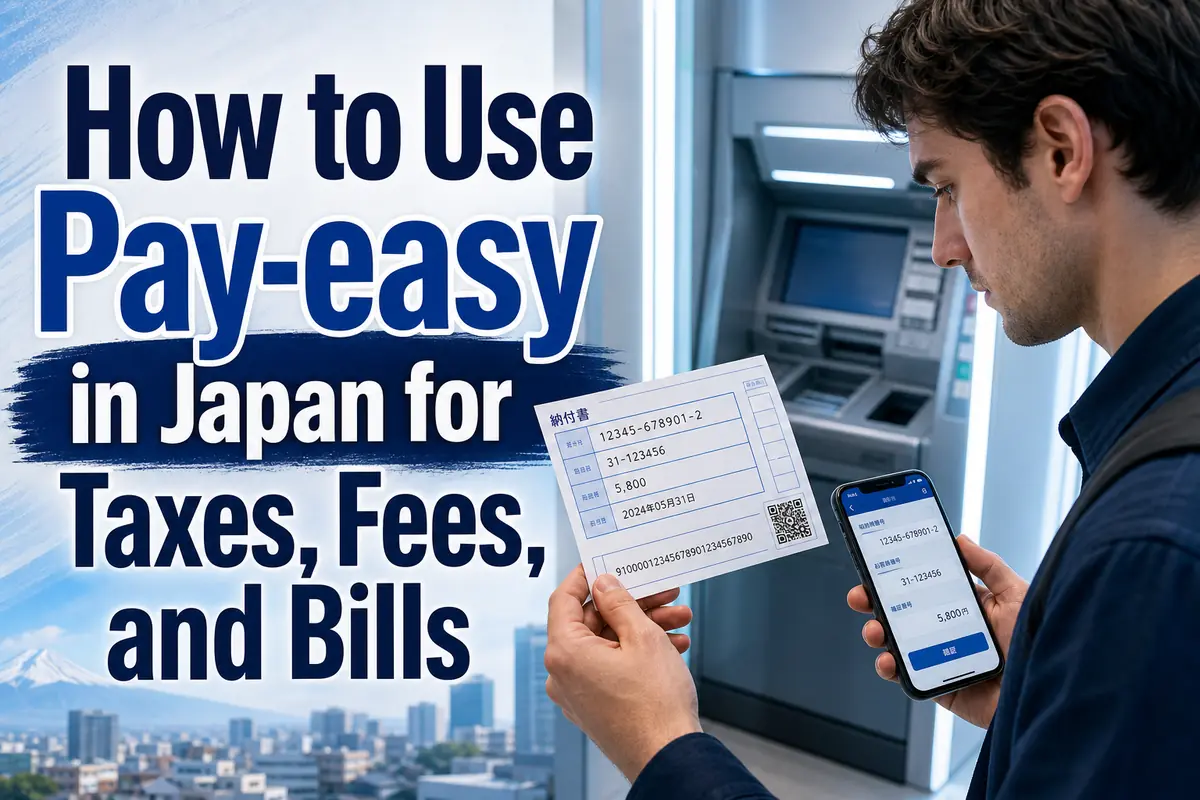
Paying Taxes and Bills with Pay-easy in Japan: A Practical Guide
Pay-easy lets you pay an eligible Japanese tax, government fee, or bill through a participating bank’s online banking service or ATM. It is not a separate payment app, and you cannot use it for every invoice. Look for the Pay-easy logo or payment numbers on the notice, then confirm that your bank and the organization receiving the money support the service.
This guide is for foreign residents, students, workers, and anyone handling a Japanese payment notice for the first time.
- Pay-easy usually requires a compatible notice or payment information issued online.
- You can pay through participating internet banking services or bank ATMs.
- You cannot use Pay-easy at a convenience-store counter or a shared convenience-store ATM.
- National tax, local tax, and private-company payments follow different preparation rules.
What Pay-easy is—and what it is not
Pay-easy is a payment network connecting participating banks with government bodies, municipalities, and companies that collect money.
You may see the name written as ペイジー (Peijī) or the Pay-easy logo on a bill. A bank’s menu may instead say 税金・各種料金払込み (zeikin・kakushu ryōkin haraikomi), meaning “payment of taxes and various fees.”
Pay-easy is not:
- a bank account;
- a stored-value payment app;
- an ordinary bank transfer, or 振込 (furikomi);
- a service available for any bill just because it has a barcode or QR code;
- a payment method used at convenience-store registers.
The official Pay-easy guide states that no separate Pay-easy registration is required for a standard numbered payment. However, online payment normally requires an existing internet-banking agreement with a participating Japanese financial institution.
Check these three things before paying
The most important step happens before you touch the ATM or banking app: make sure the notice, bank, and deadline all match.
1. Does the notice support Pay-easy?
Look for the Pay-easy logo or a group of labeled numbers. Depending on the recipient, the paper or online notice may show:
- 収納機関番号 (shūnō kikan bangō) — recipient or collecting-organization number;
- 納付番号 (nōfu bangō) — payment number;
- 確認番号 (kakunin bangō) — confirmation number;
- 納付区分 (nōfu kubun) — payment category;
- お客様番号 (okyakusama bangō) — customer number, often used by private companies.
The combination varies. Enter only the fields requested on your bank’s screen, using the information supplied by the organization collecting the payment.
A convenience-store barcode does not automatically mean that Pay-easy is available. Likewise, an eL-QR code on a local-tax notice belongs to the nationwide local-tax payment system; it can lead to a Pay-easy payment, but the process starts on the Local Tax Payment Site.
2. Does your bank support the required channel?
Support differs by financial institution and by payment recipient. A bank may support Pay-easy through internet banking but not through all its ATMs. Available hours and payment limits can also differ.
Before leaving home, check:
- whether your bank handles that organization’s payment;
- whether you can use an ATM, internet banking, or both;
- whether cash is accepted at the chosen ATM;
- the bank’s service hours and any maintenance period;
- the daily payment or account transaction limit.
The official Pay-easy site provides lists of participating institutions, although much of the detailed search interface is in Japanese.
3. Is the notice still valid?
Pay before the printed 納期限 (nōkigen), or payment deadline. An expired notice may be rejected even when all numbers are correct.
If the deadline has passed, contact the issuer shown on the notice. Do not change a number, omit a late charge, or send an ordinary bank transfer unless the issuer tells you to do so.
ここがポイント: Pay-easy does not decide what you owe or extend a deadline. It only sends an authorized payment from the selected bank channel to the organization named on the payment data.
How to pay through internet banking
Internet banking is usually the simplest route if the payment notice already contains Pay-easy numbers.
- Open your bank’s official app or website yourself.
- Log in using your normal internet-banking method.
- Find Pay-easy, 税金・各種料金, or a similar taxes-and-fees menu.
- Enter the requested recipient, payment, confirmation, and category numbers.
- Compare the recipient name, payment description, and amount on the screen with the original notice.
- Authorize the transaction using the bank’s required password, one-time code, or authentication method.
- Save the completion screen, reference number, or transaction history.
Some official or commercial websites use an “information link” flow. In that case, you select Pay-easy on the organization’s payment page, choose your financial institution, log in, check the prefilled details, and authorize payment. You may not need to type every payment number yourself.
A safety rule for links
Do not log in to internet banking from an unexpected SMS or email. In November 2025, the Pay-easy operator warned about messages using unpaid-charge or service-suspension claims and Pay-easy-like URLs. The operator does not send SMS messages demanding payment or asking for banking credentials.
Open your bank’s saved app or official website directly. If a message claims that a phone, tax, or service payment is overdue, verify it with the named organization using contact details from an official site or a notice you already trust.
How to pay at an ATM
An ATM can be useful when you do not use internet banking. Find a participating bank ATM that offers the Pay-easy taxes-and-fees menu.
- Select 税金・各種料金払込み or the Pay-easy option.
- Enter the numbers printed on the notice.
- Check the recipient and amount carefully.
- Choose an available payment method, such as a cash card or cash.
- Complete the transaction and keep the ATM statement.
A convenience-store ATM is not automatically a Pay-easy ATM. The official guide specifically says Pay-easy cannot be used at convenience-store counters or shared convenience-store ATMs. Use the participating financial institution’s own supported ATM network.
Cash availability also varies. Some unattended ATMs do not accept cash for Pay-easy, and cash service may be limited by time. Limits can apply to larger payments or accounts for which identity verification has not been completed. Check the bank’s current conditions before attempting a high-value payment.
Which bills can be paid?
A Pay-easy logo or valid Pay-easy payment data is the deciding factor. The type of bill alone is not enough.
Common eligible payments can include:
- national taxes prepared through e-Tax;
- local taxes and certain municipal charges;
- administrative application fees;
- insurance premiums or other public payments where the issuer supports Pay-easy;
- private-company invoices and online purchases offered through the network.
Not every municipality, company, tax notice, or bank channel handles the same items. Check the exact notice rather than assuming that a previous payment method will work again.
National taxes require an e-Tax step
Paying national tax through internet banking or a Pay-easy ATM is not always as simple as entering numbers from a paper bill.
The National Tax Agency states that taxpayers generally need to complete the procedure to start using e-Tax, Japan’s national electronic filing and tax-payment system, before making this kind of electronic payment. Payment information may then be created or registered through e-Tax.
Key points include:
- Pay-easy-compatible internet banking or an ATM can be used for electronic national-tax payment.
- The payment must be made while both e-Tax and the financial institution’s system are available.
- The National Tax Agency does not charge a fee for this payment procedure, although the bank may charge an ATM or service fee.
- An official paper receipt, 領収証書 (ryōshū shōsho), is not issued for this electronic payment.
If you need a stamped official receipt for a specific administrative, accounting, or other purpose, the National Tax Agency advises paying at a financial-institution counter instead. Confirm the required evidence before choosing Pay-easy.
This is general procedural information, not individual tax advice. If the amount, tax category, or deadline is unclear, contact the responsible tax office or a qualified tax professional.
Local taxes: use the eL-QR route when available
Local tax notices have become easier to pay across municipality boundaries, but their workflow differs from national tax.
If a notice has the eL mark and eL-QR, open the official Local Tax Payment Site. You can scan the code or enter the eL番号 (eL bangō) shown on the notice. The site can offer several methods, including internet banking, direct debit, credit card payment, and the issue of Pay-easy numbers for payment outside the site at an ATM or through compatible banking.
A typical Pay-easy route is:
- Scan the eL-QR or enter the eL number on the official site.
- Check the municipality, tax type, and amount.
- Select Pay-easy as the payment method.
- Record the Pay-easy information displayed on the payment-detail screen or sent in the preparation email.
- Open your bank’s official internet-banking service or use a supported ATM.
- Enter the issued information and complete payment.
The Local Tax Payment Site covers notices such as fixed asset tax, automobile tax, light motor vehicle tax, and ordinary-collection individual resident tax when the required eL information is printed. The exact taxes and notices available still depend on what the relevant local authority has issued.
No paper receipt is issued for an eL-QR electronic payment. Keep the completion email or banking record, and ask the municipality in advance if you require a formal certificate or immediate proof for another procedure.
Current change to watch in 2026
As of August 2026, the Local Tax Payment Site says that electronic payment using eL-QR is scheduled to expand to certain local public charges other than taxes from September 24, 2026, alongside an eLTAX system renewal.
This does not mean every municipal fee will become payable on that date. Check whether the actual notice carries the required eL mark or eL-QR and follow the issuing municipality’s instructions.
Fees, receipts, and payment records
For national and local public payments, Pay-easy is free to the user in most cases. Private-company payments may carry a fee, and a bank may apply an ATM after-hours or service charge.
Check three separate possible costs:
- a fee charged by the organization receiving the payment;
- a bank or ATM usage fee;
- a separate service fee for an alternative method, such as credit-card payment on a public payment site.
Do not assume that all methods shown beside Pay-easy cost the same.
What to save after payment
Keep evidence until the organization’s account or portal shows that the payment has been processed:
- the original notice;
- the ATM statement or online-banking transaction record;
- the completion screen or email;
- the date, amount, recipient, and transaction reference.
A bank record proves that a transaction was made, but it may not replace a formal tax certificate or stamped receipt. Ask the issuing organization which document is required for your purpose.
Common mistakes and how to avoid them
Most problems come from using the wrong channel, entering the wrong number, or assuming that an online payment produces the same paperwork as a counter payment.
Using an ordinary bank-transfer menu
Pay-easy numbers are not ordinary bank account details. Use the dedicated taxes-and-fees or Pay-easy menu, not 振込 (furikomi).
Confusing Pay-easy with convenience-store payment
A notice may offer both methods, but they are separate. A convenience-store barcode goes to the register; Pay-easy numbers go into a supported bank channel. Pay-easy itself is not handled at the convenience-store counter.
Entering numbers from a different notice
Several bills from the same municipality can look nearly identical. Keep only the notice being paid beside you, then match the recipient, type, year or period, and amount before authorizing.
Expecting a paper receipt
Electronic national-tax and eL-QR payments generally do not produce a stamped receipt. If a receipt is essential, check the required method before paying.
Trying again without checking the first result
If the final screen freezes or an error appears after authorization, check your account history before repeating the payment. A second attempt could create a duplicate payment.
Waiting until the final evening
Your bank, Pay-easy, e-Tax, or the payment recipient may have different operating or maintenance hours. Pay early enough to contact the issuer if the transaction is rejected.
What to do when a payment fails
Start with the error timing. It tells you whom to contact.
- The numbers are rejected before payment: Check for typing errors, expiry, and whether you selected the correct menu. If the data itself appears invalid, contact the organization that issued the notice.
- Your bank does not show the recipient: Ask the bank whether that recipient and payment type are supported through the chosen channel.
- The account is not debited: Review available funds, transaction limits, authentication, and service hours.
- The account is debited but the issuer shows unpaid: Save the transaction record and contact the issuer. The Pay-easy promotion organization does not hold individual payment details.
- You paid twice or used the wrong bill: Contact the receiving government body or company promptly about correction or refund procedures. Do not ask your bank to reverse the transaction without instructions.
- The deadline has passed: Contact the issuer for a replacement notice, updated amount, or approved alternative method.
When asking for help, have the notice, payment date, amount, bank name, transaction reference, and any error code ready. Never send your internet-banking password or one-time authentication code.
A practical pre-payment checklist
Before pressing the final payment button, confirm:
- The notice displays the Pay-easy logo, valid payment numbers, or an eligible eL-QR.
- The deadline has not passed.
- Your bank supports the recipient and payment channel.
- The recipient name and amount on screen match the notice.
- You understand any fee.
- You know whether an electronic record is sufficient or a formal receipt is required.
- You opened the bank or government website through a trusted route.
- You have a way to save the payment result.
The safest habit is simple: treat the confirmation screen as the last chance to catch an error. Read the recipient, amount, and payment purpose before authorizing, then keep the result until the issuer confirms receipt.
参照リンク
- Pay-easy official English guide
- Pay-easy: How to use the service
- Pay-easy frequently asked questions
- Pay-easy warning about phishing messages
- National Tax Agency: Payment through internet banking or an ATM
- e-Tax: Electronic tax payment
- Local Tax Payment Site: Available payment methods for eL-marked notices
- Local Tax Payment Site: Payment procedures
- Local Tax Payment Site: Planned expansion to local public charges